Operating instructions
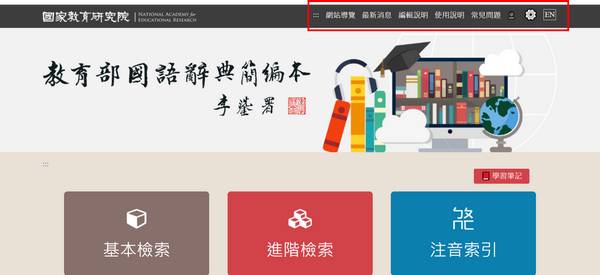
1. Function bar above
The function bar above includes: " Sitemap ", " Editing instructions ", " User guide ", "Member Login", "Function Settings", "Chinese and English Version Switching".
2. The central main function bar
The central main functional bar includes: "Basic Search", "Advanced Search", "Bopomofo index", " Stroke index " and "Radical index". Each function is described as follows:
(1) Basic search
- Keyword search
Step 1:
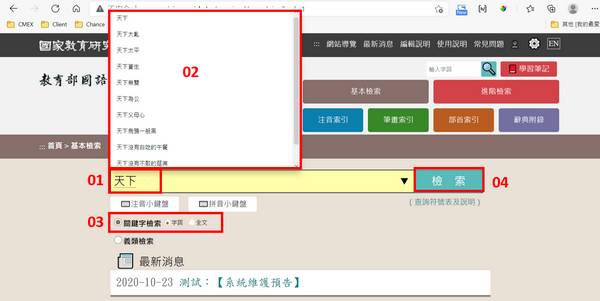
01. Enter keywords, you can enter Chinese, or use the system keypad function to enter Bopomofo, Hanyu pinyin.
02. A list of candidate words appears in the system, you can click on the words in the candidate list, or enter keywords by yourself.
03. 03. Select the search scope as "Word" or "Full text".
04. Click "Search" to search.
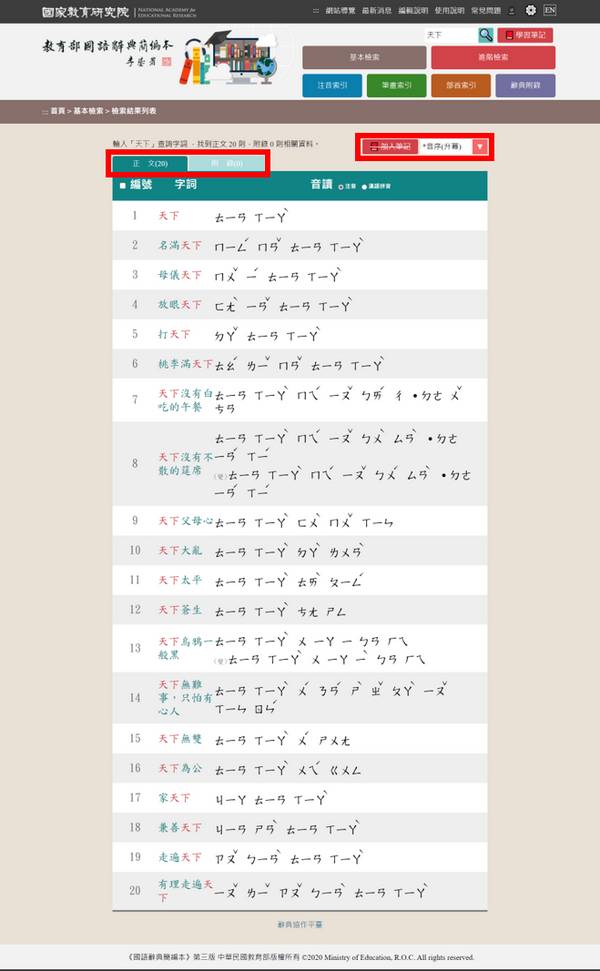
Example: Enter "天下" → Check the scope of the query "word" → click "Search".
Step 2:
01. View the search result list.
02. It can be sorted by "Phonetic sequence (ascending)", "Phonetic sequence (descending)", " Word count (ascending) or "Word count (descending)."
03. If you have logged in as a member, you can add the search results into "Learning Notebook".
Step 3: View the text content page
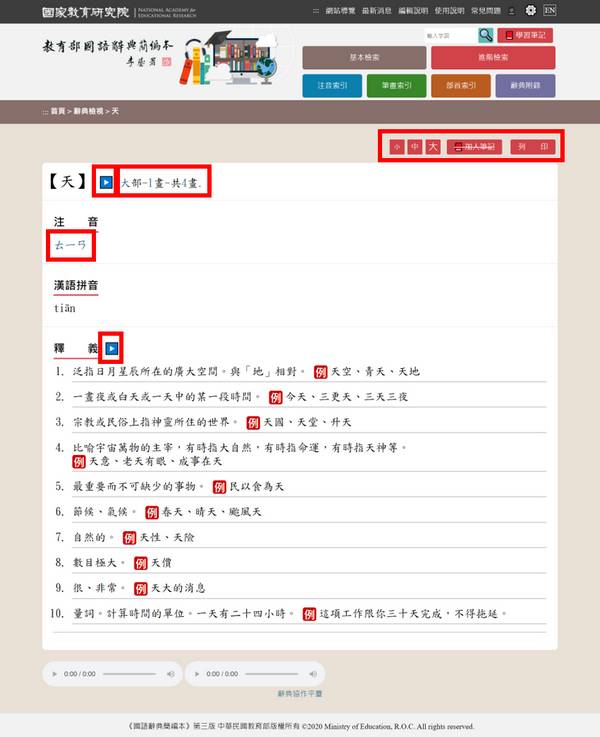
01. Click the word column of the result list to enter the content page of the text.
02. If you have logged in as a member, you can add the word into "Learning Notebook".
03. The font size can be set.
04. The content of the current page can be printed.
05. Click on each word in the title and go directly to the single word content page.
06. You can click Bopomofo to directly search for the phonetic item; if it is a one-word content page, you can click on the radical to search for the radical item.
07. If the content page has a playable audio file, you can click the play button for "one-word", "full text" or "foreign language" sound playback.
- Conceptual Search
Step 1:
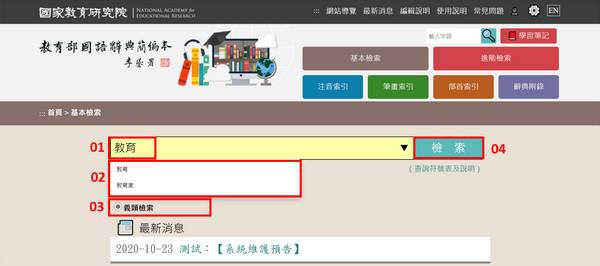
01. Enter Chinese keywords.
02. A list of candidate words appears in the system, you can click on the words in the candidate list, or enter keywords by yourself.
03. Click on "Conceptual Search".
04. Click "Search" to search.
Example: Enter "教育" → Click on "Conceptual Search" → Click "search"
Step 2:
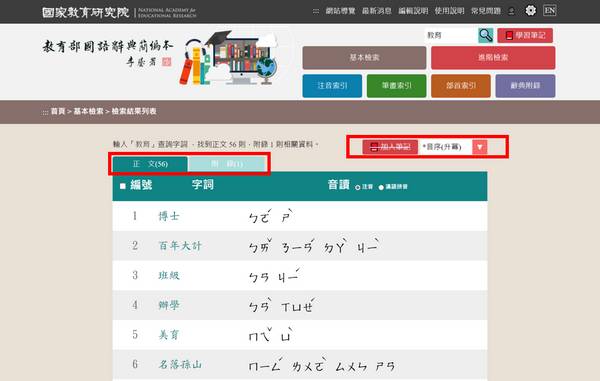
01. View the search result list.
02. It can be sorted by "Phonetic sequence (ascending)", "Phonetic sequence (descending)", " Word count (ascending) or "Word count (descending)."
03. If you have logged in as a member, you can add the search results into "Learning Notebook".
Step 3: The relevant function description is the same as keyword search step 3.
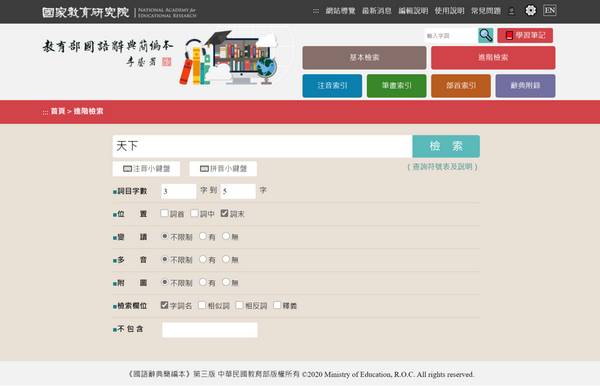
(2) Advanced Search: Keyword is required, the remaining fields are optional.
Step 1: Enter Chinese keyword.
Step 2: Choose whether to add the following search criteria
01. Word count: Enter numbers to find words that limit the number of words, such as: 3 to 5 words.
02. Field: Multiple selections are possible, options include " First word of the keyword", " Middle words of the keyword", and " Last word of the keyword".
03. Variable reading: Single choice, options include "Unlimited", "Yes" and "No".
04. Polyphony: Single choice, options include "Unlimited", "Yes" and "No".
05. Attached picture: Single choice, options include "Unlimited", "Yes" and "No".
06. Retrieval Field: Multiple selections are possible, options include "Word name", "Synonym", "Antonym" and "Interpretation".
07. Not included: You can enter one or more keywords (separated by a half-width space) to filter out the words that contain keywords.
Step 3: Click "Search" to search.
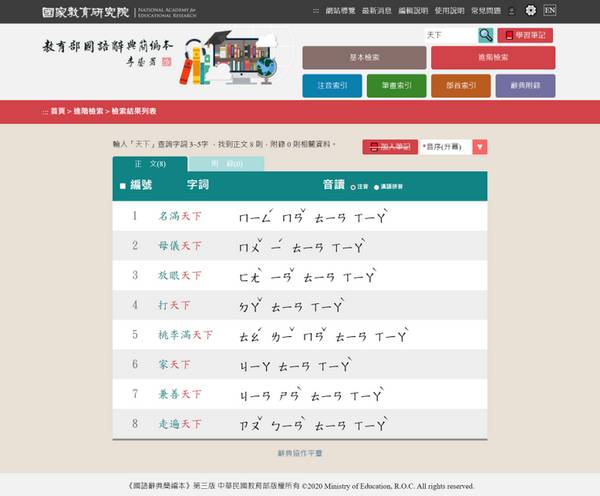
Example: Enter "天下" → Enter the number of words "3 to 5 words" → Check the field " Last word of the keyword " → Click "Search"
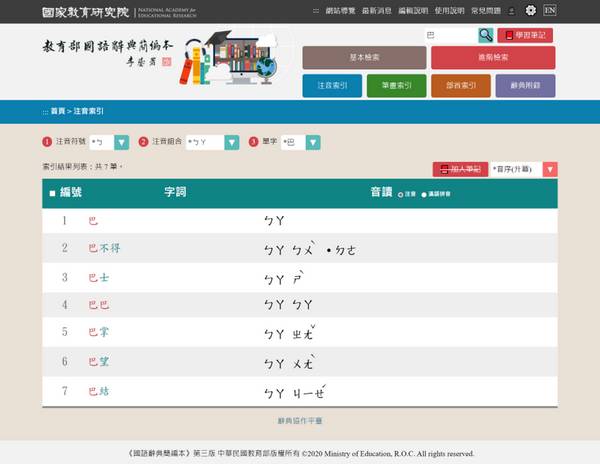
(3) Bopomofo index:
Step 1: Select Bopomofo
Step 2: Select Bopomofo combination
Step 3: Select the word you want to search
Step 4: View the search result list and text content page.
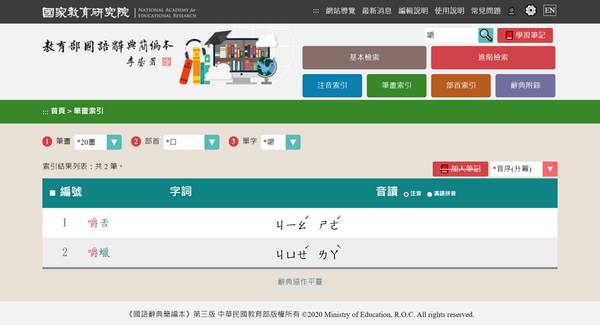
(4) Stroke index:
Step 1: Select stroke count.
Step 2: Select radical, or select "ALL " to set the full selection.
Step 3: Select the word you want to search.
Step 4: View the search result list and text content page.
(5) Radical index
Step 1: Select radical stroke.
Step 2: Select radical.
Step 3: Select the stroke other than the radical, or select "ALL" to set the full selection.
Step 4: Select the word you want to search.
Step 5: View the search result list and text content page.
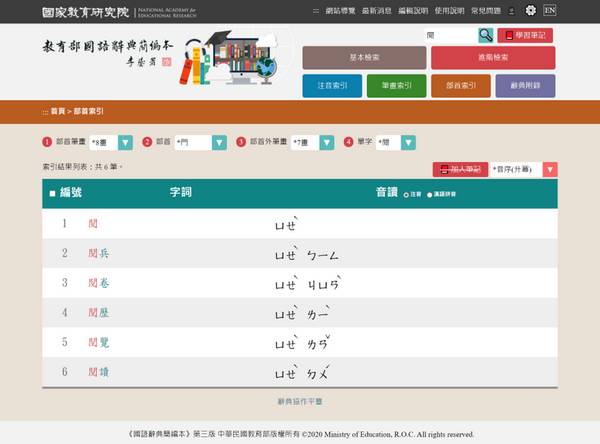
3. Other main functions
Other main functions, including "learning notebook" and "personal settings", are described as follows:
(1) Learning Notebook
- Member registration
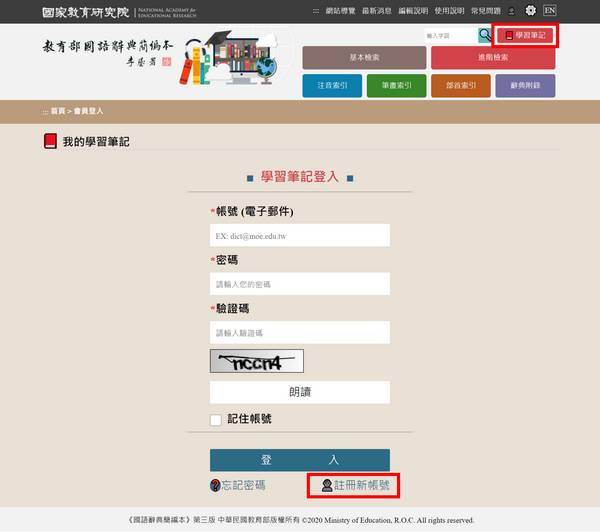
Step 1: Click the banner function bar "Member login" above.
Step 2: Click "Register ".
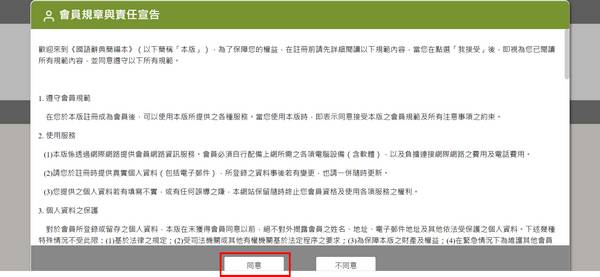
Step 3: Click "Agree".
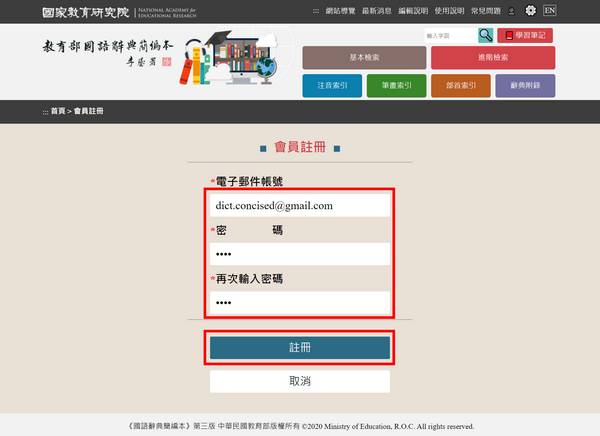
Step 4: After completing the registration information, click "Register" and the system will automatically send a certification letter.
Step 5: After receiving the certification letter, click on the activation link and you will be directed to the member area.
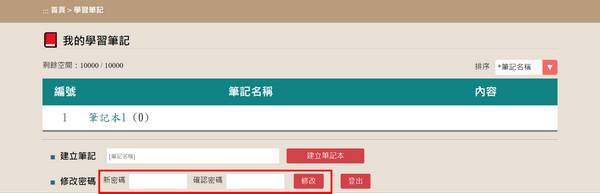
- Change Password
Step 1: Enter "New Password" and "Confirm password".
Step 2: Click "modify".
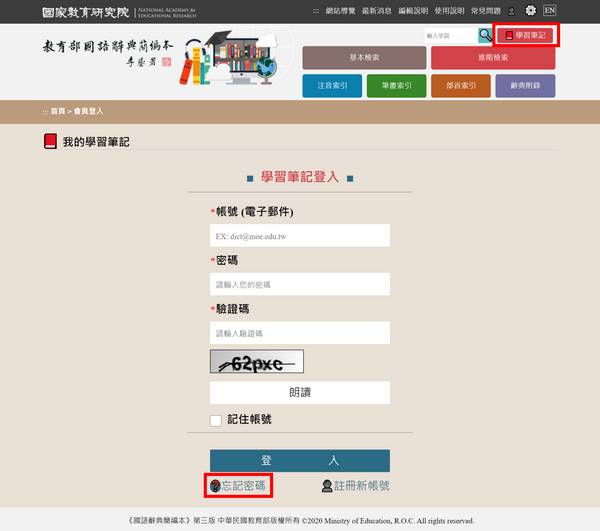
- Forget Password
Step 1: Click "Forgot Password".
Step 2: Enter the user's registered mailbox and click "Reset Password". The system will send the notification letter automatically.
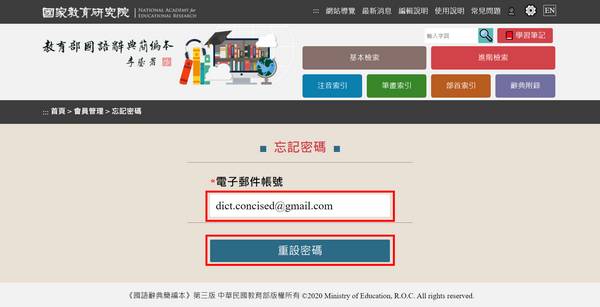
Step 3: After receiving the confirmation letter, click the link to enter the member area to reset the password.
- Create personal learning notebook
Step 1: Search word, such as "教育", and the result list will appear.
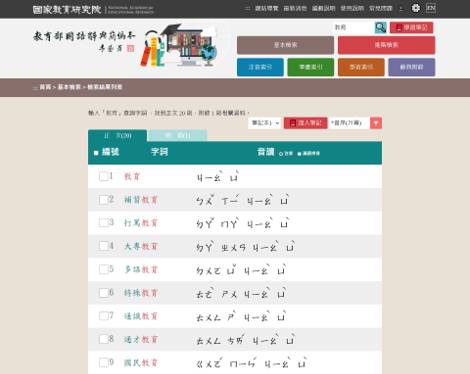
Step 2: You can batch check the words you want to add learning notebooks, drop down to select the notebook you want to add and click " Add to notebook ", the system will pop up the confirmation window.
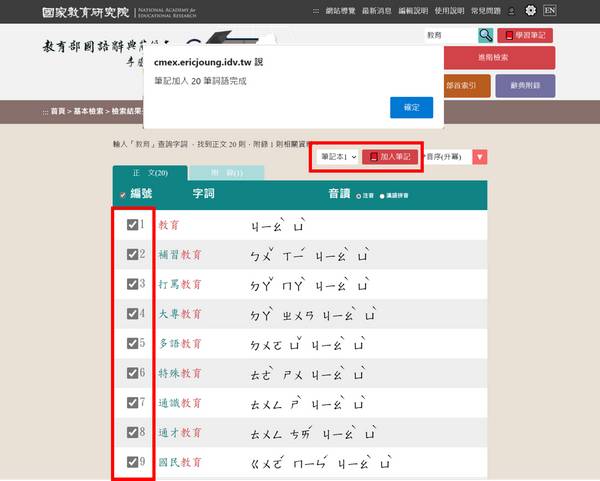
Step 3: Or you can click on the text content page, drop down to select the notebook you want to add and click " Add to notebook " to add a single word.
.jpg)
- Add/modify/delete learning notebooks
Step 1: Add a new learning notebook
01. Click on " Learning Notebook ".
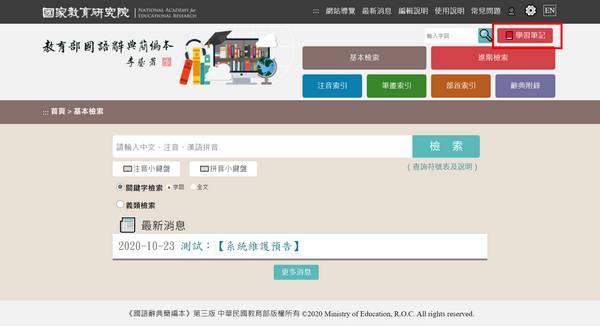
02. After entering the name of the notebook you want to add in the " Create notes " input box, click " Create a notebook " to complete the addition.
.jpg)
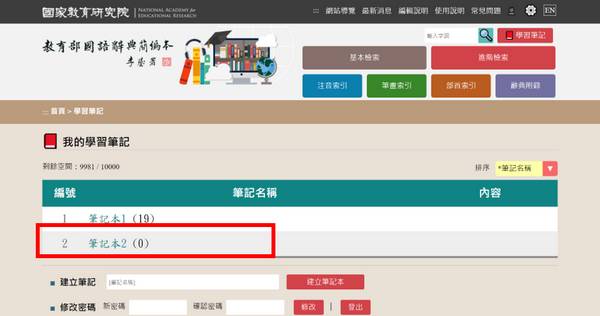
Step 2: Modify the learning notebook
01. Click the notebook you want to modify, and modify "Notebook name" and "Notebook notes" at the bottom of the page. After entering, click "Update".
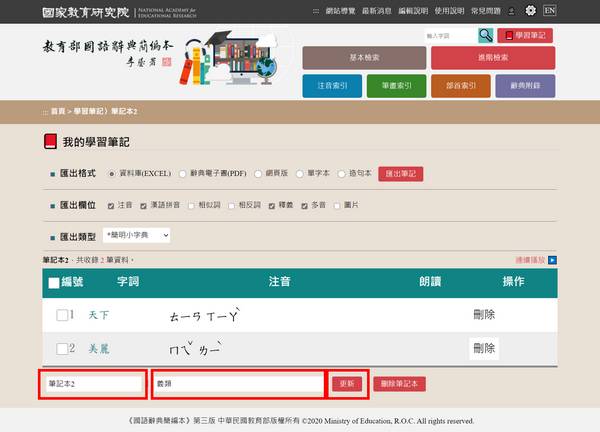
02. The Learning Notebook list page automatically presents updated information.
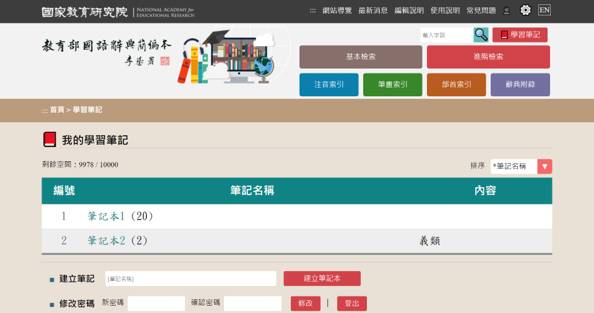
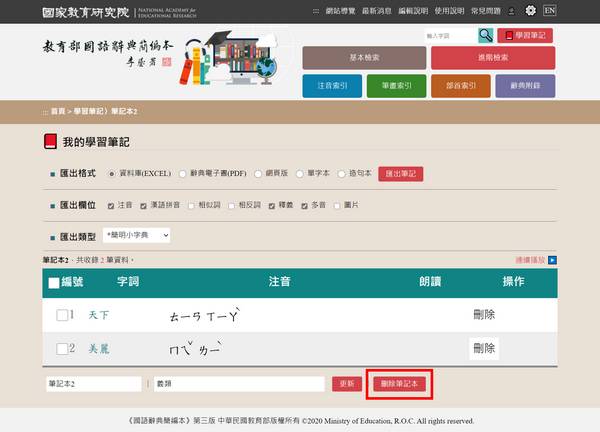
Step 3: Delete the learning notebook
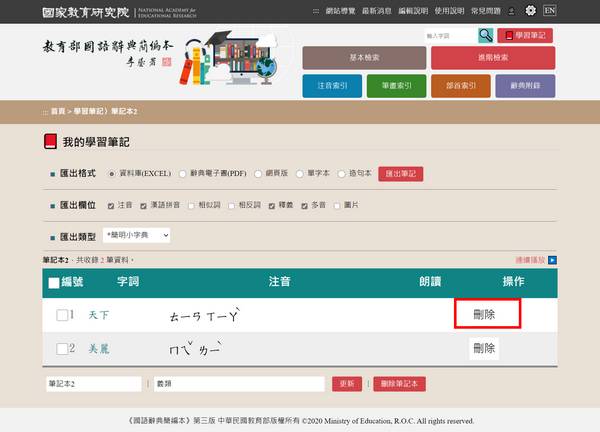
01. Click the learning notebook you want to delete and click "Delete notebook" at the bottom of the page to complete the deletion.
02. If you want to delete a single word in the notebook, you can directly click "Delete" to the right of the word to complete the deletion.
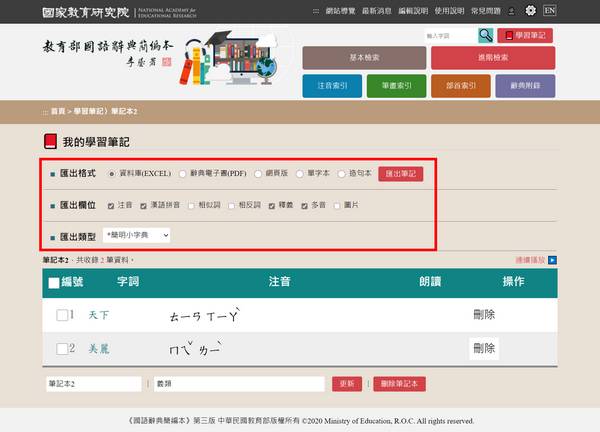
- Export notebook
Step 1: Click on the export format with options such as "Database (EXCEL)", "Dictionary eBook (PDF)", "Web version", "Vocabulary book", "Sentence book".
Step 2: Drop-down to select the export type, with options such as "Concise dictionary", "Concised Mandarin Chinese Dictionary", and "Self-edited dictionary".
Step 3: After setting the export options, click "Export notes" to export the data in the selected format.
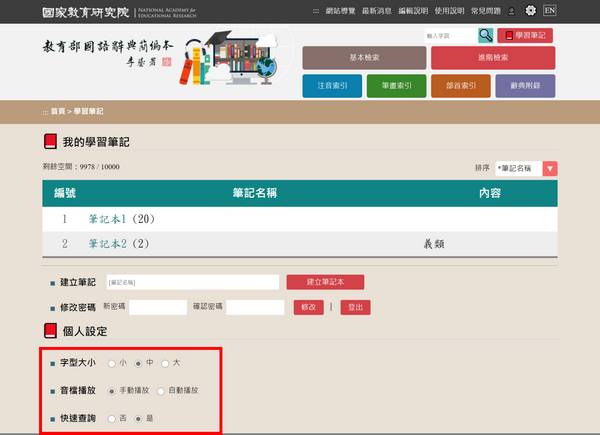
(2) Personal settings: After the member logs in, the user can personalize the settings.
- Font size
Click to set the font size of the text content page to big, medium and small. The system will automatically take effect and save it.
- Playing audio
You can set the text content page audio file to "Manual play" or "AutoPlay". The system will automatically take effect and save it.
- Quick query
You can set whether to turn on the quick query function of the text content page. If you click "Yes", you can search the dictionary content by selecting the text in fields such as "Synonym", "Antonym" and "Interpretation".